Drawn from your pages
Ask the AI to read a chapter or your notes before it draws, so the picture follows the details you have already written.
PICTURES FOR WHAT YOU WRITE
Describe a scene, a character or a cover idea, and the AI draws it beside your draft. It can read your chapter first, so the picture matches what you wrote.
Interactive demo: a picture from a single description, a character drawn after the AI reads the chapter, and the scene placed in the draft for you to approve.
Draft
Start writing, or ask for another picture on the right…
Create an image for my writing: Mara rows away from the dark lighthouse at dusk, storm clouds building behind her, one lantern glowing in the boat. Soft watercolor, for chapter three…
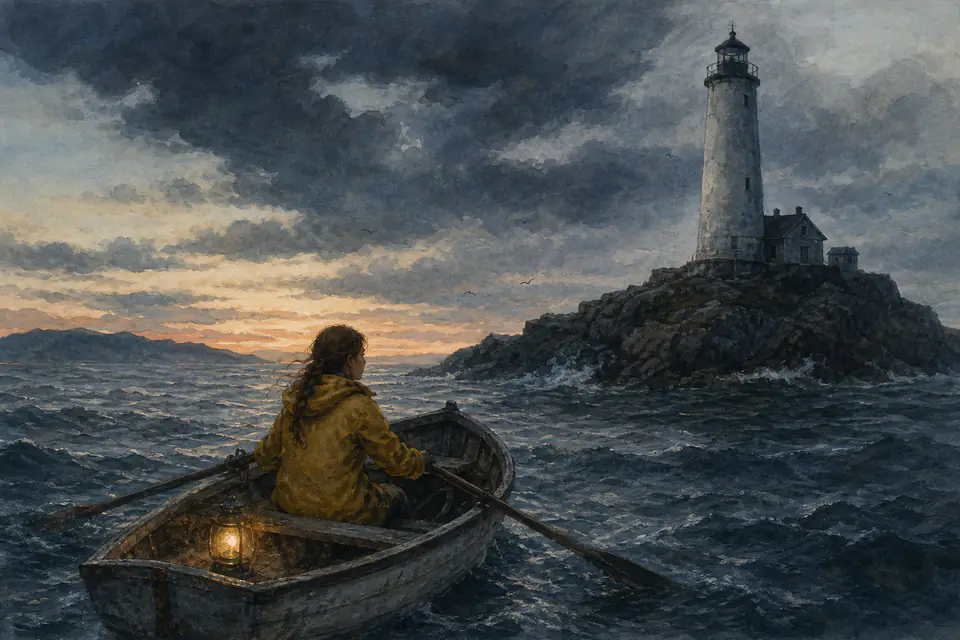
Chapter 3 · The Light Goes Out
Mara pulled the yellow oilskin tight and lifted the storm lantern. The wind had torn her braid loose again, and salt stung her freckled cheeks.
Behind her, for the first time in forty years, the lighthouse stood dark.
Draw Mara from chapter three, tall.
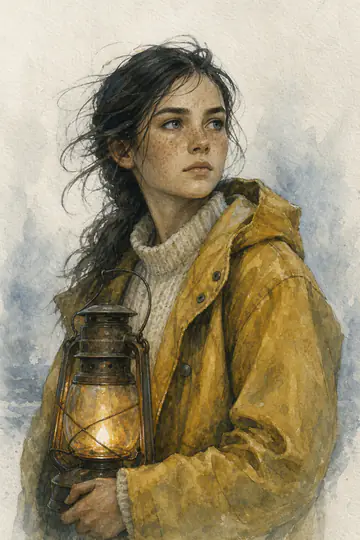
Chapter 3 · The Light Goes Out
Mara pulled the yellow oilskin tight and lifted the storm lantern. The wind had torn her braid loose again, and salt stung her freckled cheeks.
Behind her, for the first time in forty years, the lighthouse stood dark.
Put the lighthouse scene at the top of chapter three.
Sample story. The pictures were made in Muses with more detail than the default setting; the interface is drawn from current Muses components.
Ask the AI to read a chapter or your notes before it draws, so the picture follows the details you have already written.
Every picture is saved to the project’s images, next to the chapters it belongs to. Ask for one in a chapter and approve the edit like any other.
Ask for a wide scene, a square portrait or a tall cover, in watercolor, ink or oils, and for another version when something is off.
Pictures that go with your writing: a scene from a chapter, a character portrait, cover art, a place in your story, or a header image for an article or newsletter. Describe what you want to see, or ask the AI to read your chapter or notes first and draw from them.
After you sign in, Muses opens a new writing project and sends your description to the AI as a request for an image. The picture appears in the conversation and is saved to the project’s images, so you can keep writing right beside it.
Yes. In a project that holds your chapters and notes, ask the AI to read a scene or a character description first; it looks up the text, then draws. To bring in writing you already have, import your files from the Muses home page after you sign in. Check the details in each picture and ask for another version when something doesn’t match.
Not automatically. Describe the character the same way each time, or ask the AI to use an earlier picture as a reference. That helps, but a consistent look isn’t guaranteed.
Ask it to. The AI adds the image where you say as a suggested edit, and you accept or reject it like any other change. Every picture also stays in the project’s images.
You can write your description here before signing in; an account is needed to create the project and make the picture. Each image uses star power from your plan, and the Free plan’s monthly star power covers a few standard pictures. More detail, larger sizes and extra versions use more. You can check your balance in Muses.
It can paint the cover art and leave room for the title. Lettering, the spine, the back cover and print-ready files aren’t part of Muses, so finish the cover in the design tool you use for print.
Under Muses’ terms, AI-generated content belongs to you; use it in line with the terms and the law. Requests that break the image model’s content rules are declined. Muses does not guarantee originality, non-infringement, or copyright eligibility.
Describe a moment from your story, a character or a cover idea. The AI draws it beside your draft, and it stays with the project.
Describe my picture